Practical privacy
A Software Update Is Also a Privacy Decision
A practical guide to automatic updates, end-of-support risk, router maintenance, and keeping connected devices worthy of trust.
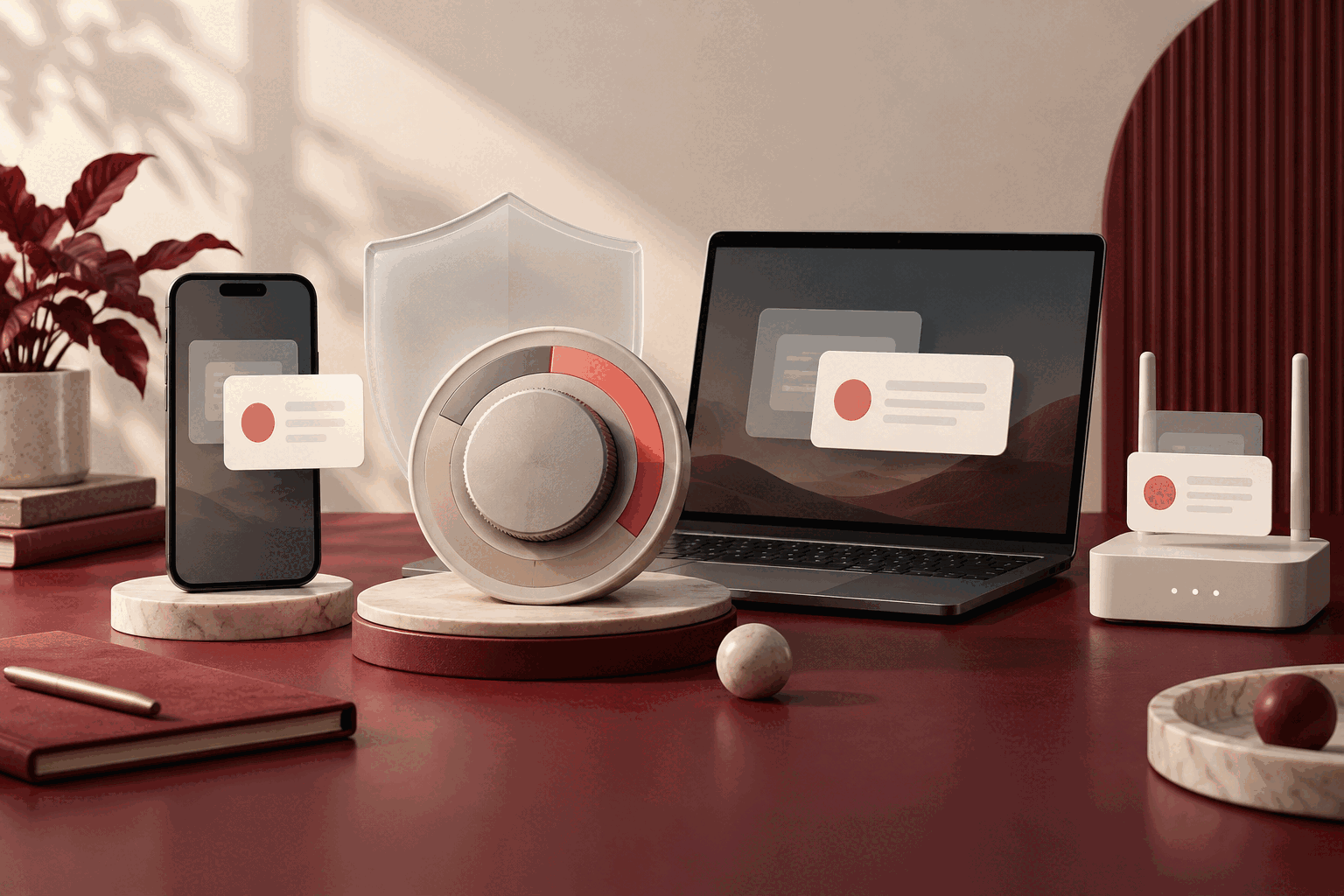
Software updates are easy to treat as interruptions. A phone wants to restart, a laptop needs a few minutes, or an app asks for attention when you are trying to do something else. Because many updates arrive with new features and design changes, it is also easy to overlook their quieter purpose: correcting security weaknesses that could expose information.
Updating is not a guarantee that a device will remain secure. It is a maintenance decision that reduces avoidable risk. The goal is not to install every prompt without thinking. It is to build a reliable process for recognizing legitimate updates, applying them promptly, and noticing when a device is no longer supported.
Updates close gaps that are already known
Software is revised after release because problems are discovered over time. Some are ordinary bugs. Others are security vulnerabilities that may let an attacker bypass a protection, run unwanted code, or gain access that was never intended. Once a developer has issued a fix, delaying it can leave a known weakness in place.
The Cybersecurity and Infrastructure Security Agency recommends installing updates as soon as possible and turning on automatic updates. That advice applies not only to operating systems but also to browsers, mobile apps, security tools, and the connected products that quietly share a home or office network.
This is where security and privacy meet. A compromised device may reveal stored files, account sessions, messages, contact information, location history, or data moving through the device. Keeping software current helps preserve the boundaries that privacy settings are supposed to enforce.
Automatic updates reduce the waiting period
Automatic updates are useful because they shorten the gap between a fix becoming available and the fix reaching your device. Check that the operating system, browser, app store, and security software are allowed to update automatically. Some devices download updates but still wait for permission to restart, so a periodic restart can be part of the routine.
There are reasonable exceptions. A business may test updates before broad deployment, and specialized equipment may depend on carefully controlled versions. In those settings, delay should be an intentional, documented decision with another safeguard in place, not the result of an ignored notification.
For personal devices, schedule restarts for a convenient time and keep enough free storage and battery power for installation.
Remember the devices that stay in the background
Phones and laptops receive most of the attention, but routers, televisions, cameras, printers, speakers, watches, and other connected products also run software. They may remain powered on for years and can be forgotten once setup is complete.
The Federal Trade Commission’s home Wi-Fi guidance recommends checking for router software updates and enabling automatic updates when the feature is available. Review the router’s administration page periodically, change default administrative credentials, and confirm that an old device still receives security support.
Make a short inventory of connected devices rather than trying to remember them all. Include the product, where it is located, how updates are delivered, and whether it still serves a real purpose. A device that no one uses but that remains connected still creates work and potential exposure.
End of support is a privacy decision point
Eventually, a product may stop receiving security updates. It might continue to turn on and perform its basic function, but that is different from being maintained. If unsupported software handles sensitive information or connects to important accounts, consider replacing it, limiting its network access, or retiring it.
Replacement does not have to follow every new model. Look for the manufacturer’s support schedule and update history. The meaningful question is whether security fixes are still available.
When retiring hardware, sign out of accounts, remove stored information, perform the supported reset or erasure process, and check whether the device remains listed in any account dashboard. Updating and disposal are connected parts of the same lifecycle.
Use a route you trust
Fake update warnings can imitate legitimate system messages. CISA advises downloading software only from verified sources and avoiding update links in emails or unexpected pop-ups. Use the device’s built-in settings, the official app store, or a bookmarked vendor support page. If a browser page suddenly claims the entire device is infected, close the page and check through the operating system’s own security tools.
The FTC’s malware guidance likewise recommends automatic updates and warns against clicking unexpected links or downloading unfamiliar attachments. A real need to update does not make every update prompt trustworthy.
A simple routine is enough: enable automatic updates, restart devices, check the quiet equipment on the network, watch for end-of-support notices, and install through a path you chose. Privacy depends partly on settings and policies, but it also depends on whether the software enforcing them is still maintained.
General educational information, not legal or security advice. Sources checked September 15, 2026.