Privacy education · November 13, 2026
Review How Your Smart Thermostat Knows You’re Home
Review the sensors, phone location settings, and schedules that can tell a smart thermostat when your home is occupied.
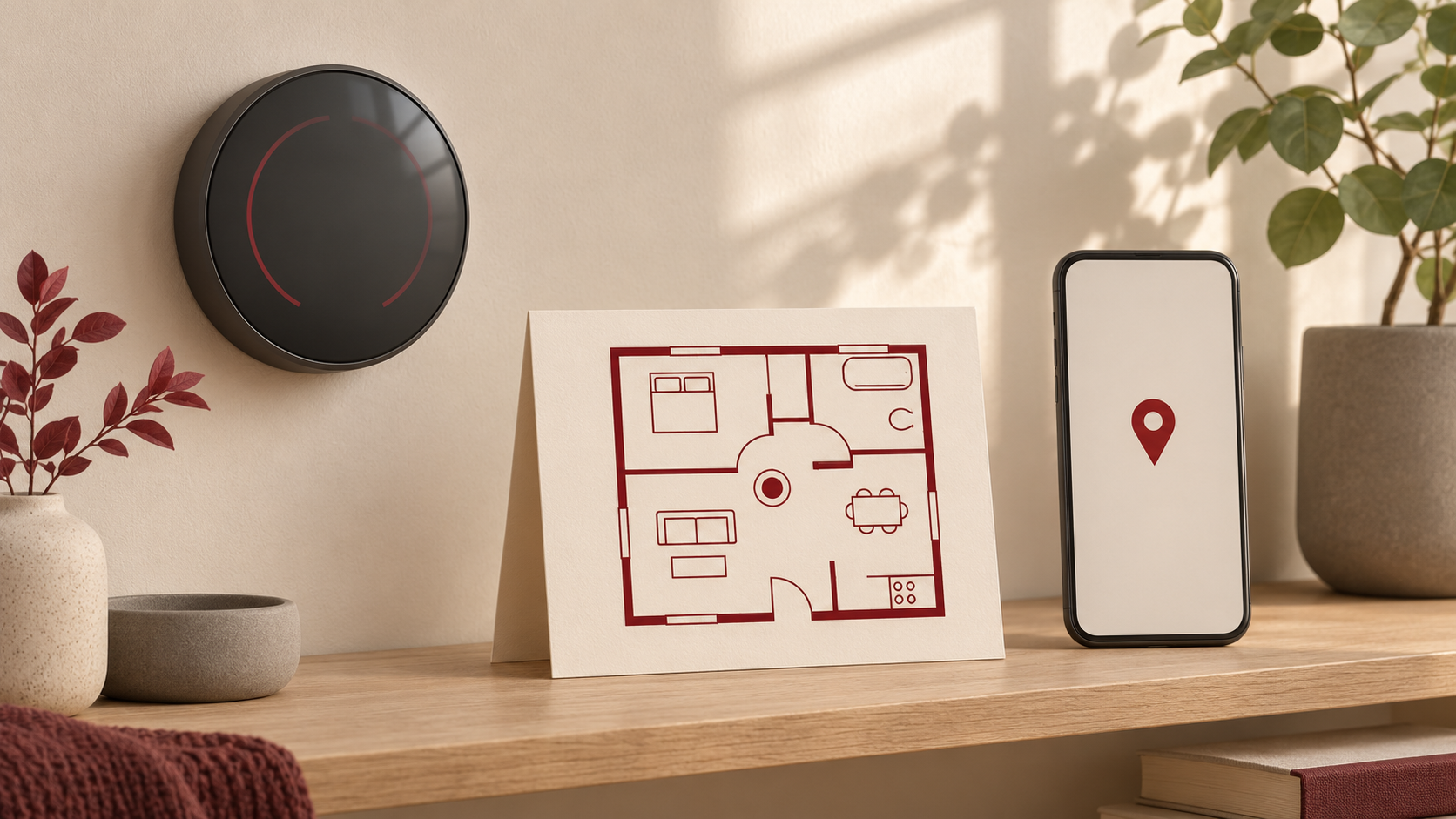
A thermostat can follow the same timetable every week. Some connected models can also change settings when they estimate that everyone has left. If you use that feature, look at what the system uses to make the estimate and what it records about the change. A walk past a hallway sensor and a phone crossing a boundary around your home are different signals. You may have a say in whether either one is used.
Find the devices that contribute
Start with the thermostat model and the app you use to manage it. Google documents motion sensing on several Nest thermostats. Some models can also treat a temperature adjustment made at the thermostat as a sign that somebody is home. The separate Nest Temperature Sensors measure temperature and lack the activity sensors needed to contribute to presence sensing. Check the exact name of a sensor before assuming what it does. Google’s guide to devices that help sense presence
In the Google Home app, open Home settings, then select Presence sensing to review which devices contribute. The list can include eligible devices besides the thermostat. Google says that when you select a device with several compatible signals, the app uses all of those signals for presence sensing. Check the model’s documentation if you want to understand what opting that device in involves. Google’s guide to presence settings
Decide whether your phone should contribute
A geofence is a virtual boundary around a place. If you opt in, the Google Home app can use your phone’s location to determine when it crosses the boundary around your home. A connection to your home Wi-Fi network can also help the system work out whether you are there. Google’s instructions for phone-based presence call for allowing the app access to location in the background. Google’s guide to presence signals
The Google Home app has a setting that allows the home to use phone locations, plus a choice for each member’s own phone. Each person manages their own phone’s setting. If you share a home, talk through who actually wants to contribute. A home with only one contributing phone may behave as though everyone has left when that person goes out. Check any other routines that use these same signals before changing them. Google’s guide to presence settings Google’s explanation of phone location and presence
Review the history and its audience
In the Google Home app, check Activity for your own arrival and departure entries. Google says home members can also see when and why presence-based automations started. If you are considering deleting the home’s presence history, review the scope first. Google says the history includes data from multiple people and devices in the home, and that the deletion option is available to members who have set up presence-based automations. Google documents a 60-day retention period for this particular history. Talk with the other people in the home before clearing a shared record. Google’s guide to reviewing and deleting presence history
Choose how the thermostat should respond
Decide whether you want automatic changes when people leave, a timetable you can edit, or manual adjustments. Google documents a separate Eco when away setting on supported Nest thermostats managed in Google Home. Look for the thermostat’s own setting if the change you want is about heating or cooling. If your goal is to change what contributes to the home’s estimate of occupancy, review the home’s presence settings as well. Google’s guide to Eco when away
You can also review the temperature schedule for your model. Google documents how to edit it in the app or on the thermostat, depending on the device. Make one change at a time and check how the system behaves on an ordinary day, including when one person leaves and someone else stays home. Write down what you changed so you can restore the setting if needed. Ask the people who live there what they noticed before making another change. Google’s guide to thermostat schedules