Privacy education · October 18, 2026
Review Your Public Profile as a Visitor
A practical guide to profile audiences, service-specific settings, public previews, and keeping visible details suited to their purpose.
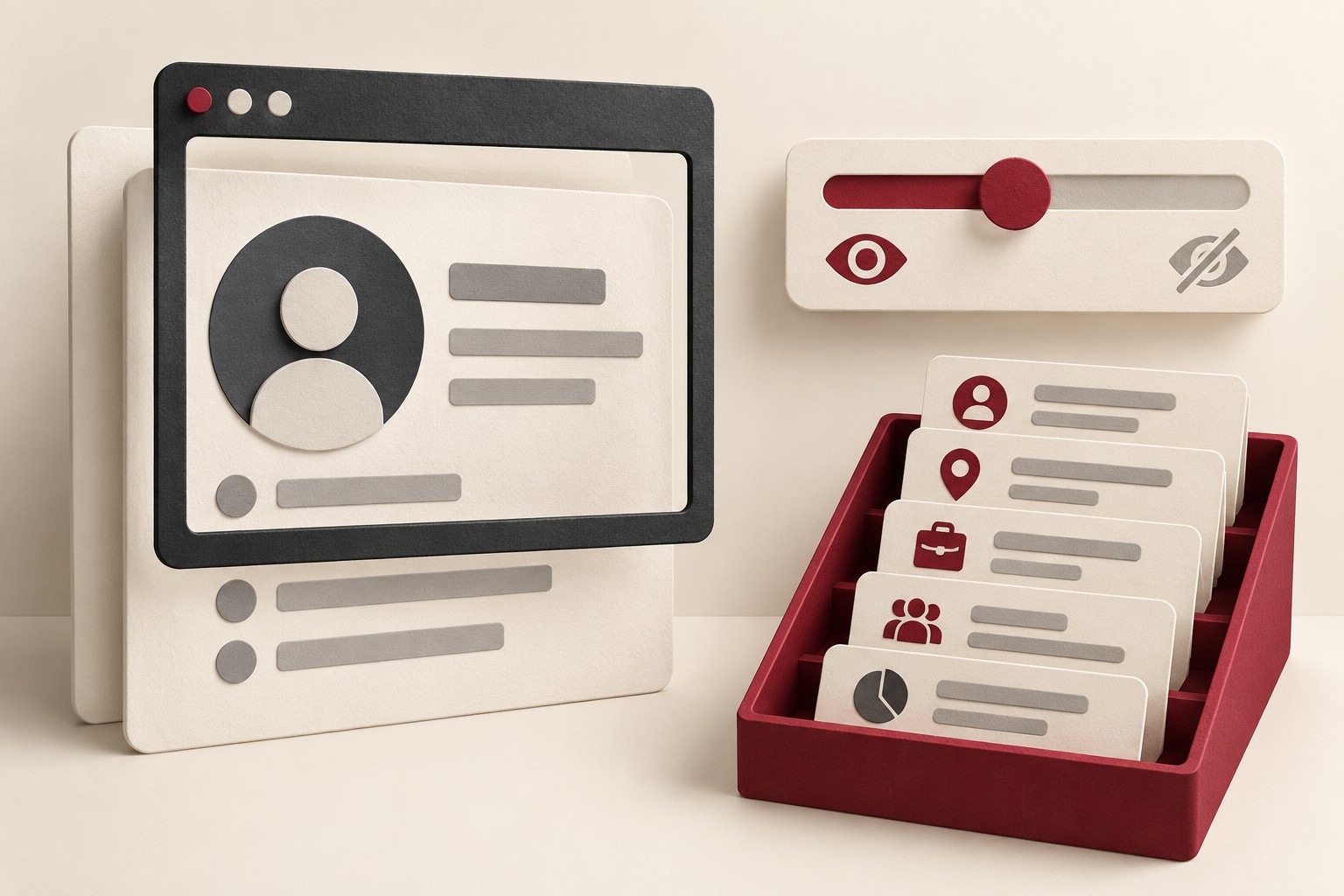
A profile you created years ago may still introduce you to people today. A short biography, an old role, a photograph, and a few optional details can tell a story you have not reviewed recently. The editing screen is a useful place to update that story, but it is worth checking what a visitor can actually see.
The goal is an audience decision you understand. You may want a professional profile to be easy to find while keeping a hobby account more limited. Start with that purpose before deciding which details belong in public view.
Make a small inventory
Choose two or three profiles you use regularly. Include a service where you comment, share content, or participate in a community, as well as any dedicated profile page. Record the public profile links privately so you can revisit the same pages after making changes.
For each one, ask who needs to find it and what they need to learn. A concise description of your current work may be useful. An outdated affiliation or an optional personal detail may no longer serve the purpose you had in mind when you added it.
Read the audience controls carefully
Google’s profile-visibility guidance describes audience choices for supported information under Personal info, Choose what others see, and Go to About me. It also points to Personal info, Your profiles, and See profiles for managing profiles in individual services.
The distinction matters. Google says the name and picture in About me appear in most of its services, while different names or pictures set within certain services can remain there. Treat the account-level page as a starting point and check the service-specific profiles you actually use.
Look for the audience attached to each setting. Public visibility, visibility to people you interact with, and visibility within an organization are different questions. Avoid assuming that changing one field settles every place your profile appears.
Look through a visitor’s window
After reviewing the settings, open the profile’s public URL in a browser session where you are signed out of that service. Read it as someone encountering you for the first time. Note the sections, photographs, links, and descriptions that are visible.
This is a limited observation of one audience at that moment. It does not reproduce what a follower, a contact, a signed-in member, or someone in your organization can see. If the page asks you to sign in, do not treat that screen as proof that every profile detail is hidden. Compare the result with the platform’s documented settings.
If you use a built-in public-preview feature, read its explanation too. A preview can help, but its scope matters as much as its appearance.
Allow for different public displays
LinkedIn’s public-profile instructions describe controls for public visibility and particular sections. On desktop, they are reached through Me, View Profile, and the edit control beside Public profile & URL.
LinkedIn also explains that some contexts show only a limited preview of eligible fields, and nonmembers may encounter sign-in prompts. Its guidance says search tools can take weeks or months to reflect public-profile changes. A short preview or an unchanged search result therefore needs interpretation; neither replaces checking the actual visibility controls.
Keep only what serves the purpose
Review the visible text and images again after making changes. Remove unnecessary detail where the service permits it, and update statements that could give an inaccurate impression. A profile can be useful without becoming a complete personal history.
Consider other people who appear in photographs, descriptions, or linked material. Ask whether those references are needed and whether the people involved expected that audience. Your profile review is also an opportunity to respect someone else’s privacy choices.
The FTC’s sharing guidance notes that viewers can save or redistribute content despite privacy settings. Limiting visibility is useful, but it should not be treated as retrieving copies that others already saved.
Make the review easy to repeat
Keep a private note of the profiles checked, the audience you intended, and any setting that needs follow-up. Revisit the list after a role change, a new profile feature, or a change in how you use a community.
A manageable routine is enough: identify the profile, choose its purpose, review the controls, inspect the public view, and check again after changes. That turns a profile from an old collection of details into a deliberate introduction.
General privacy education. Audience controls and public displays vary by service, account type, and software version. Follow the current documentation for your account. Sources reviewed October 18, 2026.