Practical privacy
Your Lock Screen Is Part of Your Privacy Settings
A practical guide to reducing sensitive notification previews, reviewing app alerts, and testing what remains visible before a phone is unlocked.
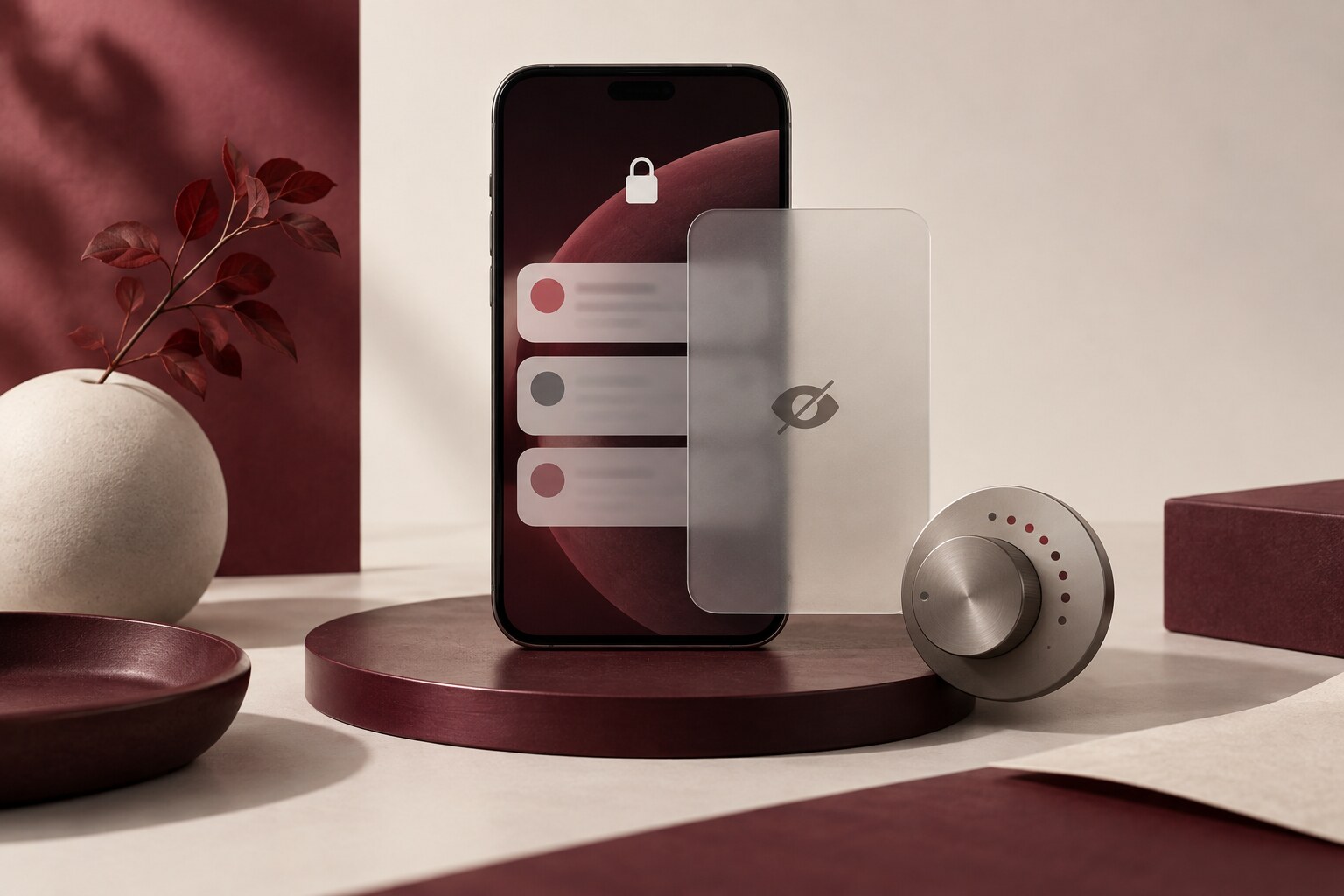
A locked phone can still tell a surprisingly detailed story. A name, part of a conversation, a calendar invitation, a delivery update, a verification code, or the subject line of an email may appear before anyone unlocks the device. Each alert can look harmless on its own, but a sequence of them may reveal routines, relationships, appointments, purchases, and account activity.
The answer is not necessarily to silence every notification. Alerts can be useful for emergencies, travel, accessibility, work, and everyday coordination. A better goal is to decide which information deserves to be visible immediately and which should wait until you have authenticated.
Look at the phone before unlocking it
Begin with a simple observation rather than a settings menu. Put the phone on a desk, lock it, wake the display, and look at it as if it belonged to someone else. Notice whether notification previews show a sender, message text, an account name, an appointment, or an action button. Consider what a person nearby could learn in a meeting, a shared home, a classroom, a restaurant, or a vehicle.
This exercise makes the privacy decision concrete. The important question is not whether a notification is confidential in the abstract. It is whether the notification reveals more than it needs to before the owner is present and verified.
Start with previews, not every alert
Both major mobile platforms provide controls for lock-screen content. Apple’s official guide to changing notification settings on iPhone explains that previews can contain details such as message text, email text, and calendar information. It also describes preview choices including Always, When Unlocked, and Never, along with controls for where an app’s notifications appear.
Android’s official guide to controlling notifications describes options to show all notification content, hide sensitive content, or show no notifications on the lock screen. It also explains how to turn individual apps or notification categories on and off. Exact names and available choices may vary by phone manufacturer and software version.
For many people, hiding sensitive content until unlock is a useful middle ground. The phone can still signal that something arrived without displaying the substance of the message to everyone nearby. If a global setting feels too broad, review the apps with the highest consequences first.
Review apps by consequence
Messages, email, calendars, health services, financial accounts, authentication tools, home-security apps, and workplace systems often deserve closer attention. A notification from one of these apps may expose a contact, balance, appointment, location, or access code even if the underlying app is protected by biometrics or a passcode.
Other alerts may be comfortable to leave visible. Weather warnings, timers, alarms, transit changes, and a few carefully chosen safety notifications can remain useful at a glance. The right balance depends on the person and situation, so use consequence rather than habit as the sorting rule: if the content appeared while the phone was unattended, would it reveal something you would rather keep private?
Notice what can be done from the notification
Visibility is only one part of the review. Some notifications allow replies, dismissals, approvals, archives, or other actions without opening the full app. Convenient actions may be appropriate for low-risk alerts, but sensitive accounts deserve a test. Lock the device, trigger a test notification, and see what a person can read and do before authentication. Where the operating system or app offers a choice, require unlock for consequential actions.
Remember the other screens
A phone is not the only place where notifications can travel. Smartwatches, vehicle displays, tablets, desktop mirroring, and screen-sharing sessions can reproduce alerts in a new setting. Review those destinations separately instead of assuming the phone’s lock-screen choice applies everywhere. Apple’s notification guide, for example, includes a separate control for allowing notifications during screen sharing. Other ecosystems and individual apps use their own controls.
Test the result in real conditions
After changing settings, send a test message or create a calendar alert while the phone is locked. Keep your face or finger away from the device so automatic authentication does not hide the result. Check whether the sender, content, and available actions match your intention. Repeat the test after moving to a new phone, adding a wearable, changing a work profile, or installing a major operating-system update.
A balanced default is simple: keep essential alerts, hide sensitive details until unlock, and review high-consequence apps individually. The lock screen may be the first thing you see, but it should not automatically be the first place everyone else can read your private information.
General educational information, not individualized security advice. Controls vary by device, app, account, and software version. Sources checked September 18, 2026.