Privacy education ·
Review Which Apps Can Read Your Health Data
Check which apps can read or add health and fitness data in Apple Health and Android Health Connect, and learn what happens to copies they already have.
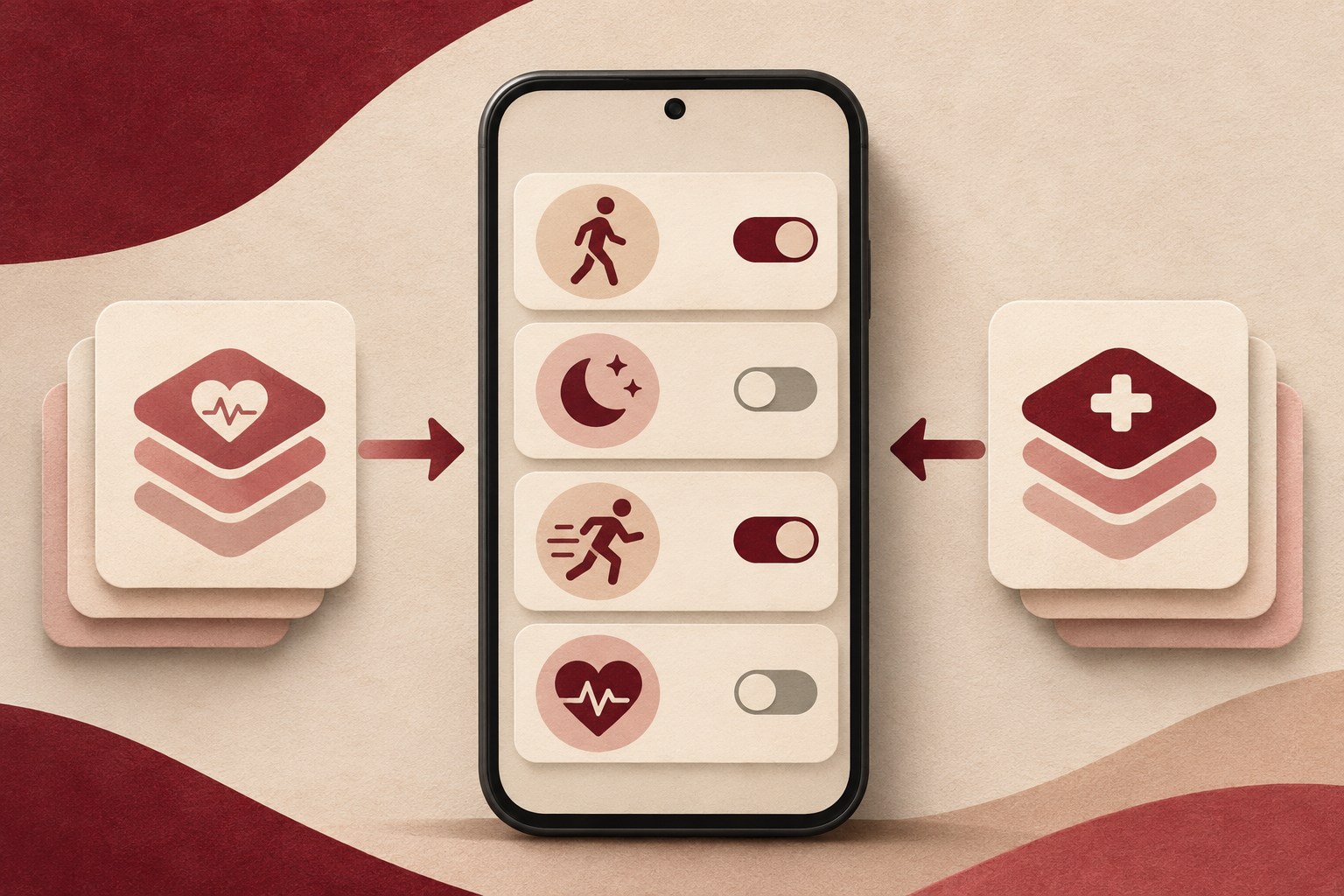
A step counter, workout app, and smartwatch can each contribute to the health and fitness information on your phone. Connecting a new app can save you from entering the same information twice. It can also give that app access to data that another device or app collected. Start with one connection and look at what the app can read, what it can add, and which categories are involved.
Review what each app needs
Think of the feature you want to use. A workout app may ask to add sessions it records. It may also ask to read information already in your health app. Those permissions do different jobs. You might want the app to add a workout while keeping a separate category, such as sleep, outside that connection. Check the categories when you set up the app and again if you later stop using a feature.
On an iPhone, open Health, tap Summary, then tap your picture or initials. Under Privacy, select Apps and choose one app. Review the individual items and the switches for reading from or writing to Health. If an app needs to add data, check whether the list includes other categories that you have no reason to share. Apple’s guide to sharing data with apps
Apple explains that an app with write permission can read back the entries it wrote itself. An app granted read permission for a type of data can read entries for that type from other sources as well. If you use a watch and several apps, consider what you have gathered in Health over time when deciding whether a new app should read a category. Apple’s guide to health data access
You can also start with a category you care about. In Health, open that category and look for Data Sources & Access under Options. Review the device and app names there. If you see a source you forgot about, go back to the permission screen to inspect its settings. Apple’s guide to viewing data by category
Look at permissions and recent access on Android
Open Health Connect, choose App permissions, and tap the app you want to review. Look for the read and write choices for the specific data types it supports. If you are finished with the connection, removing access revokes the app’s read and write permissions in Health Connect. A connected app’s own settings are another place to check if you set up the connection from that app. Google’s guide to managing connected apps Google’s Health Connect setup guide
Health Connect’s Recent Access screen shows apps that accessed or stored data in the past 24 hours. Start there if you want to check which apps have used the connection lately. For a list of permissions, including for an app you use infrequently, go back to App permissions. Google’s guide to finding Health Connect data
Decide whether to disconnect or delete
Use the permission control when you want to stop an app from reading or writing a category through Health Connect. The data already stored in Health Connect stays there after you revoke permission. For supported types such as step count, you can separately open Data and access and find deletion options. Check the scope before confirming, since deleting a single entry and clearing a category affect different amounts of data. Google’s guide to managing connected apps Google’s guide to deleting Health Connect data
An app may have kept a copy it downloaded earlier. If you want to review that copy, open the app that received the information and look for its data or account controls. Start with the name of the app and the category you previously shared. Google’s guide to previously connected apps
Make one permission change at a time. Reopen the app’s permission screen and confirm which category is enabled. If you want to check that your usual connection still works, use a low-sensitivity activity you would record anyway, such as a short walk, or use a separate test account if one is available. Keep sample entries out of records you rely on. Then revisit the permission list after adding a new device or retiring an app.