Privacy education · October 12, 2026
Email Images Deserve Their Own Privacy Review
A practical guide to remote email images, automatic downloads, protected retrieval, and deliberate exceptions.
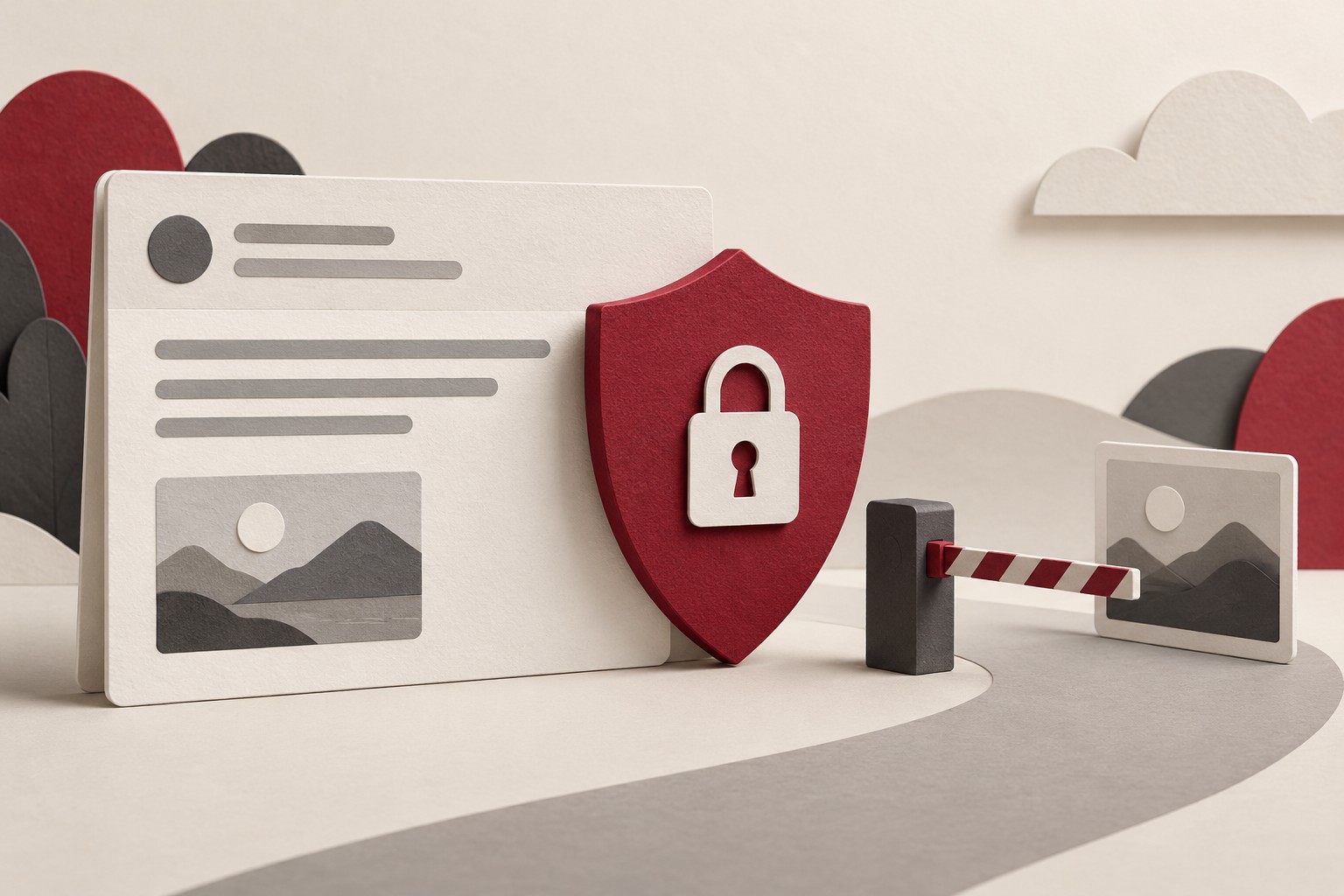
An email can contain more than the words in its preview. Some pictures arrive inside the message; others are retrieved from the internet when the email application loads them. That difference makes image loading a useful privacy setting to review, even if you already pay attention to suspicious links.
Consider a newsletter with a large banner and several small illustrations. You may want to read its text before deciding whether to load the pictures. A deliberate default gives you that choice. It also helps you understand why a message sometimes shows an empty image box rather than assuming something is broken.
Understand which images the setting controls
Microsoft’s Outlook mobile guidance explains that externally hosted images, sometimes called web beacons, can be used to track whether someone has read an email. It also distinguishes them from images embedded as attachments: the Block External Images setting does not block those embedded images.
This is a distinction about how content arrives, rather than how attractive or familiar it looks. A small image may be relevant to privacy even when you cannot see it clearly. A photograph sent as an attachment may behave differently from a picture retrieved through a remote reference.
Find the control for your actual email app
Open the application’s settings and look for privacy, remote content, external images, or automatic downloads. Check the documentation for the version you use. A desktop application, a mobile app, and a browser inbox may offer different controls even when they connect to the same account.
For classic Outlook, Microsoft documents automatic-picture-download options under File, Options, Trust Center, and Trust Center Settings. Its classic Outlook instructions describe blocking internet pictures, exceptions, and loading pictures for a particular trusted message. They should not be assumed to describe every Outlook version.
Read the exceptions as carefully as the main switch. A choice that allows pictures from trusted senders can change what loads automatically. Decide whether that exception fits your purpose instead of treating a familiar name as a reason to stop reviewing the setting.
Privacy protection and blocking are different choices
Some applications protect how remote content is retrieved rather than simply refusing to retrieve it. Apple’s Mail Privacy Protection explanation says Protect Mail Activity downloads remote content in the background regardless of engagement and routes it through separate relays. Its purpose includes preventing senders from linking that retrieval to your IP address and reading activity.
That means a privacy feature can still involve downloading images. Review the description of the setting you choose. Do you want protected retrieval, a prompt before loading, or a stricter approach to remote content? Use the application’s current guidance to understand which options it actually provides.
A helpful question is: what happens before I make a choice, and what changes if I load the content? Answering it is more useful than relying on a setting’s name alone.
Make exceptions deliberately
If you need an image to understand a message, decide whether to load it for that message. A receipt, event announcement, or newsletter may be easier to read with its pictures, but you can make that decision after reviewing the sender and context.
Avoid changing a global default merely to solve one inconvenient message. Where the application offers a narrow exception, consider whether that is enough. If you do allow automatic loading for a sender or category, revisit the choice when it stops being useful.
Check the other places where you read mail too. A careful setting on a laptop does not tell you what a phone app or browser inbox does. Keep a short private note of the apps you reviewed so you can repeat the check after replacing a device.
Keep the setting in perspective
An image-loading control is one part of email privacy. It does not decide whether a reply is appropriate, whether an attachment should be opened, or whether a link leads to the place you expect. Continue reviewing those actions separately.
The practical goal is a default you understand, with exceptions you choose. Review the app, read the scope, check the other devices you use, and pause before loading content when the context is unfamiliar. A small setting can make reading email a more deliberate privacy decision without requiring you to give up useful messages.
General privacy education. Controls and behavior vary by email application, version, and account type. Follow the current provider instructions for your setup. Sources reviewed October 12, 2026.