Practical privacy
Download History Is a Privacy Record Too
A practical guide to reviewing browser download lists, finding the files behind them, cleaning shared devices, and keeping only what still serves a purpose.
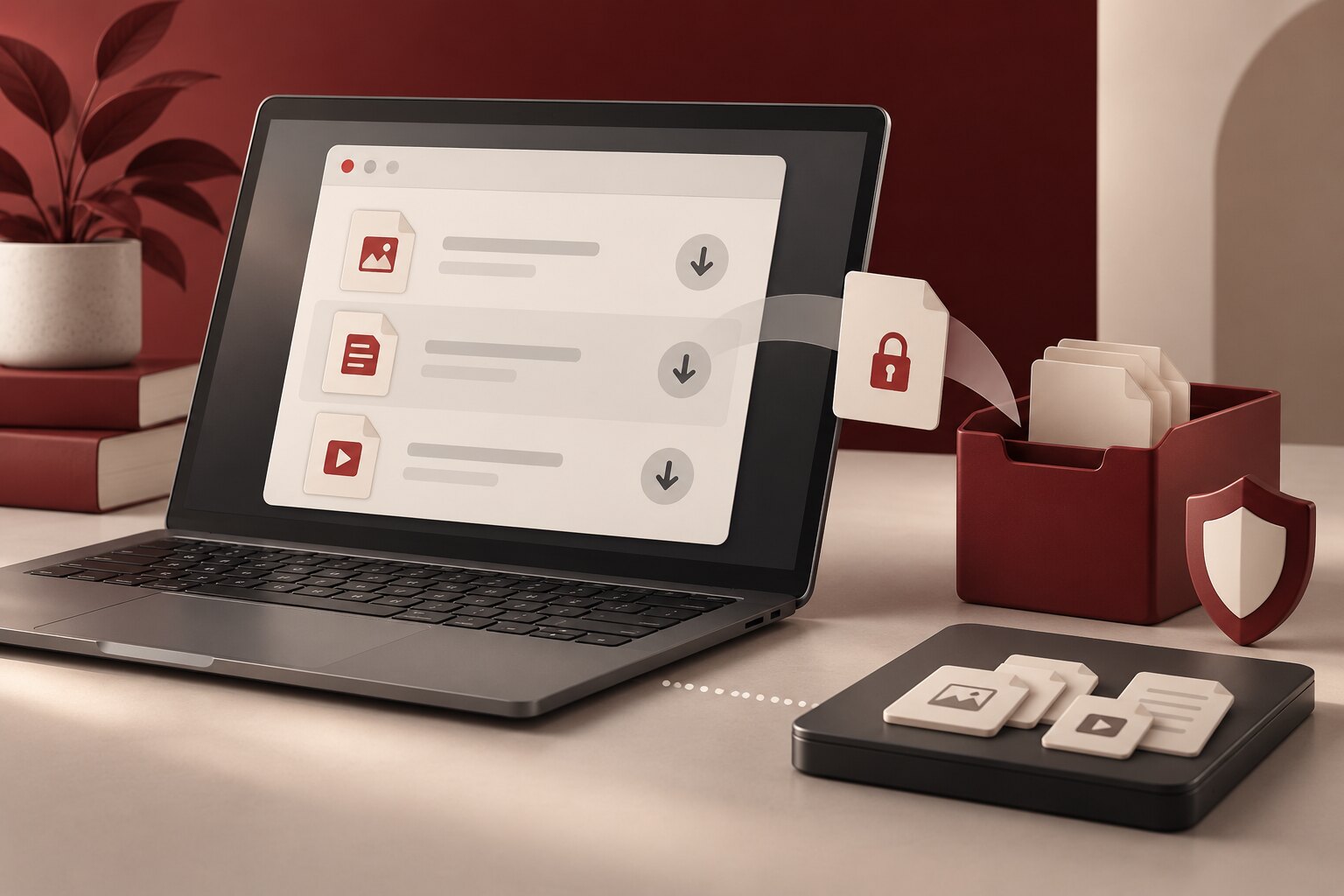
A download can feel like a finished action: click, save, open, move on. But it often leaves two separate records behind. The browser may keep a list showing the file name, source, date, and status, while the file itself remains in a Downloads folder or another location on the device. Both layers can reveal useful context about a person’s work, health, travel, finances, interests, or household—even when the document is never opened again.
That does not make every download dangerous. It does mean download cleanup should be treated as an ordinary privacy habit, especially on shared computers, work devices, loaner machines, or any device that is being repaired, sold, or returned.
Start with the browser’s record
Modern browsers provide a downloads page or library. Chrome’s current download guidance explains how to view the full list, open an item, show it in its folder, or remove it from the Downloads page. Mozilla’s Firefox documentation says its Library can display previous downloads along with their size, source, and download time. Microsoft’s Edge privacy documentation likewise describes a download-history view and a control for clearing that history.
Review before clearing. File names alone may expose subjects you would not want visible to the next person using the browser. A source address can reveal which portal, provider, employer, school, or service supplied a file. The record may also help you locate the actual document, so clear it only after you have decided what to do with the file.
Clearing the list is not deleting the file
This distinction is easy to miss. Google states that removing a download from Chrome’s history takes it off the browser’s Downloads page but not off the computer. Mozilla says “Remove From History” and “Clear Downloads” do not delete the files, while a separate Delete action can remove a selected file from disk. Microsoft similarly states that clearing Edge download history does not remove files from the device—and deleting the files does not automatically erase their download-history entries.
In practice, a thorough review has two passes. First, inspect and clean the browser list. Second, open the folder where downloads are stored and examine the actual files. Chrome and Firefox both document controls for showing a downloaded item in its folder and changing the default download location. If you use more than one browser profile, repeat the review in each relevant profile rather than assuming one list represents the whole device.
Decide what deserves to remain
Use purpose, not age alone, as the test. Keep a file if you still need it and can store it in a deliberate location. Move important documents out of a general Downloads folder into an organized, access-controlled folder. Rename vague files when a clearer name will help you recognize them later—but remember that a descriptive name can itself reveal sensitive information to anyone who can browse the folder.
Delete duplicates, expired forms, old tickets, temporary exports, installers you no longer need, and documents already stored in an appropriate system. Then check the device’s trash or recycle bin if the goal is removal rather than decluttering. If the Downloads folder is synchronized or backed up, a local deletion may affect other copies, or another copy may remain elsewhere. Review the relevant sync and retention behavior before assuming the item is gone everywhere.
Reduce the next cleanup
Browser settings can make future downloads more intentional. Chrome lets users choose a default folder or ask where to save each file. Firefox provides a comparable choice in its Downloads settings and also lets users review how different file types are handled. Asking where to save can add friction, but it encourages a decision at the moment the file arrives instead of sending everything into one long-lived pile.
Also review automatic opening behavior. Chrome documents a control for turning off “Always open files of this type,” and Firefox lets users change the action assigned to a file type. Automatic opening may be convenient, but it can make the boundary between viewing and saving less obvious. A deliberate prompt is often a better default on a shared or sensitive device.
Private or guest browsing does not remove this responsibility. Edge’s documentation says download history from an InPrivate or Guest session is cleared when those windows close, but the downloaded files remain on the device. The same practical rule applies broadly: a private session may reduce the visible browser record, while files you choose to save can persist.
A five-minute monthly check is usually enough: review the browser list, open the real folder, keep what has a continuing purpose, remove what does not, and adjust the saving behavior that created the clutter. Download history is small data, but it can tell a surprisingly complete story.
This article provides general educational information, not individualized technical or legal advice. Browser menus, file-handling options, sync behavior, and deletion results can vary by device, profile, account, operating system, and software version. Official sources and guidance were reviewed on September 30, 2026.