Privacy education · November 12, 2026
Review What Your Doorbell Camera Records
Check your doorbell camera’s view, distinguish recording masks from motion zones, and review audio and stored clips.
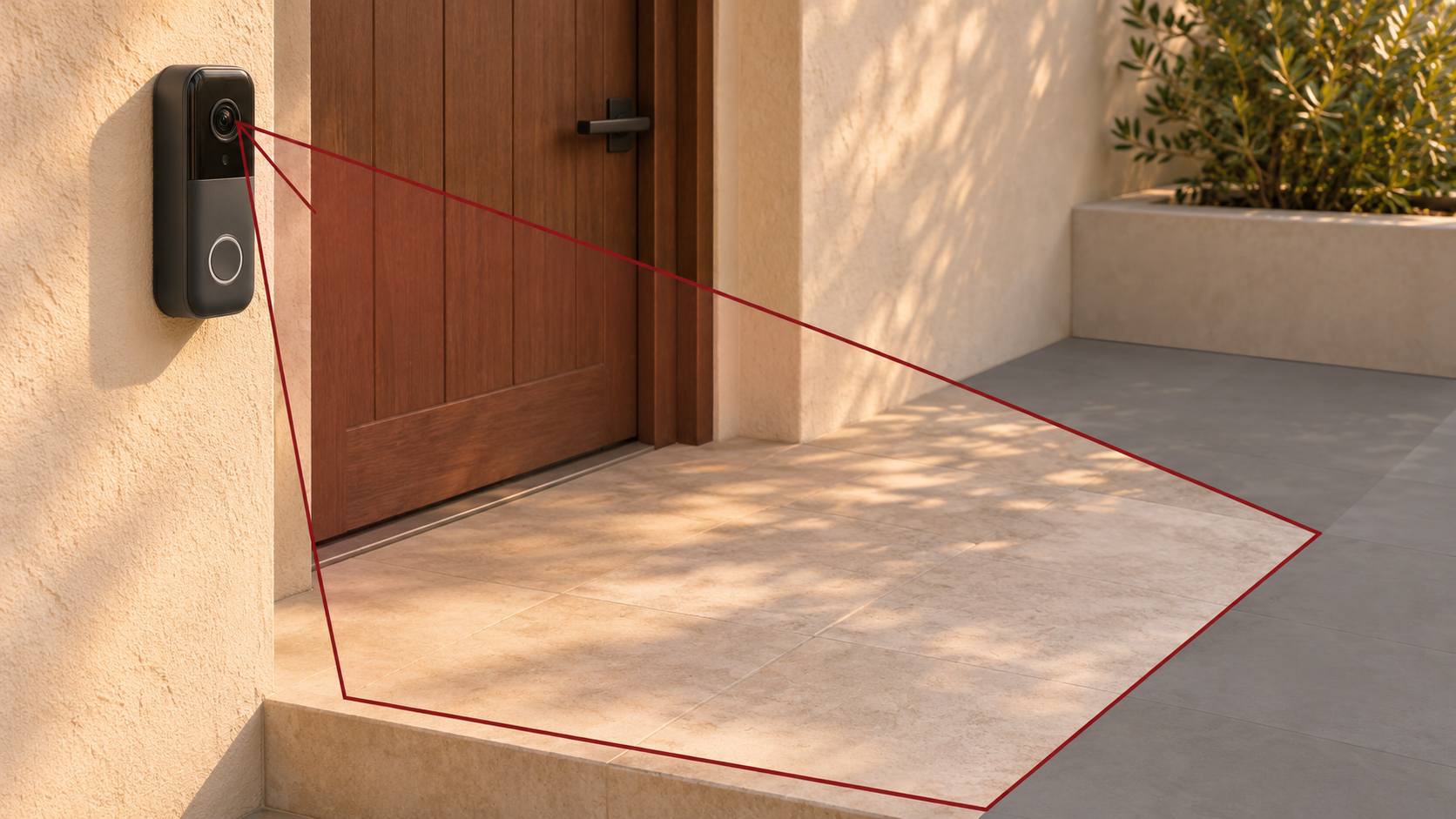
A doorbell camera may help you see when a package arrives. Its view can also include a neighbor’s steps, a shared hallway, or a window across the way. Start by deciding which part of the entrance you need to see. Then check the live picture, a recent clip if your device saves them, and the list of people who can open either one.
Look at the edges of the picture
Open the live view and look at the corners as well as the area directly in front of the door. If you can safely narrow the angle while keeping your entrance visible, start there. Walk up to your own door and look at what the camera shows. Check again after dark so you can see how lighting changes the view you get.
For a model that offers a privacy mask, check what the mask covers in both live and recorded video. On supported Ring devices, a Privacy Zone blocks part of the picture in both views. Ring says motion behind the mask can still trigger a recording. If you adjust the camera’s position, revisit the mask to make sure it covers the intended area. Ring’s guide to Privacy Zones
Check what the motion settings do
On Nest models with Activity Zones, a zone can help you manage which events are saved or which notifications you receive for an area, depending on the app and device. Google says the camera still streams its full view. If the camera saves video of an event, the picture can still show areas outside the zone. This matters when a zone around the front step leaves a neighbor’s entrance visible at the edge of the picture. Google’s guide to Activity Zones
Try a normal approach to your door and check three things afterward. See whether you got a notification, whether the app saved a clip, and what appears in the clip. Those checks tell you what each setting did during the test. Review the recording mode too, especially if you have a device that can store continuous video alongside clips of individual events. Google’s guide to Nest video history
Listen to a recent recording
Look for an audio setting for the doorbell itself. Google says a Nest camera or doorbell can record nearby sound when the microphone is on and the device has video history. Turning the microphone off stops the device from streaming or recording audio. If you choose to change it, check a new live view and, if available, a new clip. Also check any older clip you intend to share, since it may still contain sound from when the microphone was enabled. Google’s guide to Nest audio settings
Review stored clips and who can see them
Check the recording history and the storage settings for your exact device and plan. Ring lets people with an eligible subscription set a cloud video storage period per device. Ring says a changed period applies to videos captured afterward, so review the clips already in history separately. Clips someone downloaded, or videos shared through a link, are worth checking separately from the event list. Ring says some shared links may still work after the associated event is deleted in the app. Ring’s guide to video storage time
If your device saves snapshots as well as clips, look up how long each is kept. Ring’s Snapshot Capture feature has its own cloud storage period. Review the snapshot and video settings together when you decide how much history you want to keep. Ring’s guide to video storage time
Open the list of people with access and check the device and permissions assigned to each person. Ring, for example, allows account owners to grant access to specific devices. Its Limited role can use Live View and see Event History. Some higher levels can also share or download recorded clips. Remove access you no longer need, and check any links you already shared. Ring’s guide to user permissions
Repeat the live-view and recording checks if you move or replace the doorbell. A small change in angle can put a part of the property you meant to leave out back in view.