Practical privacy
Clipboard History Deserves a Privacy Review
A practical guide to reviewing clipboard history, pinned items, cross-device syncing, and copied information that should not remain available.
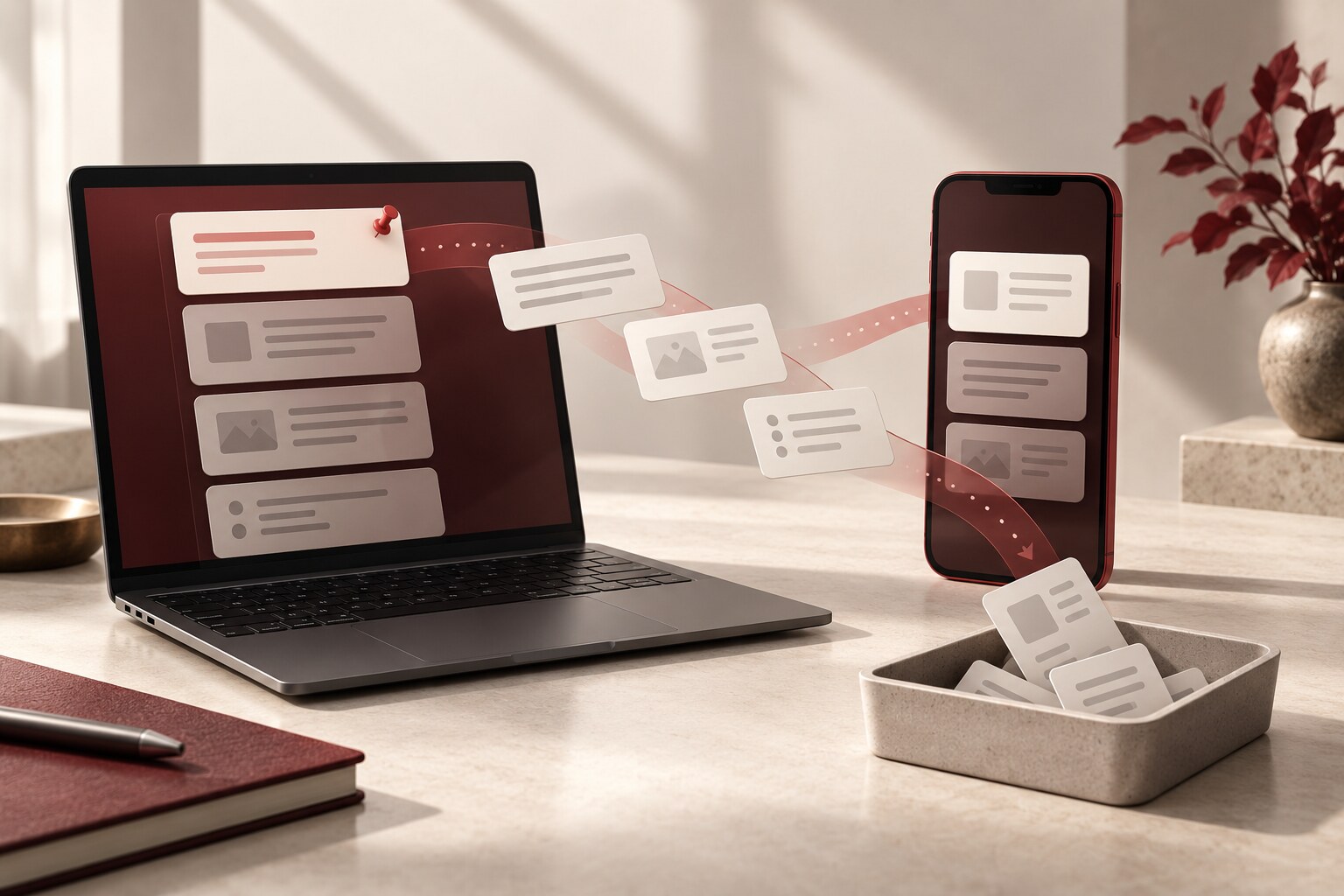
Copy and paste feels temporary. A password, address, account number, private message, recovery code, or image is selected, moved, and then forgotten. Depending on the device and settings, however, the clipboard may remember more than the last thing copied. It may keep a history, preserve pinned items, or make copied text available on another device.
That does not make the clipboard inherently unsafe. It is a useful workspace built into modern operating systems and keyboards. The privacy issue is visibility: people often know what they intentionally saved in a document, but they may not remember what remains in an interface designed to stay out of sight.
Clipboard behavior is not the same everywhere
Windows offers an optional clipboard history that opens with the Windows logo key and V. Microsoft’s current clipboard guidance says the history can hold up to 25 entries, supports text, HTML, and bitmap items up to 4 MB each, and automatically removes older entries unless they are pinned. A restart clears ordinary history, but pinned items remain. Those details matter because pinning changes a temporary convenience into a more durable record.
Windows can also sync clipboard text through the cloud to other devices signed in with the same Microsoft or work account. Microsoft provides both automatic and manual syncing options. If a copied item should remain only on one computer, check Settings, System, Clipboard and confirm whether cross-device history matches that expectation. On a managed work device, follow organizational policy instead of changing controls that an administrator requires.
Apple’s Universal Clipboard works differently. Apple’s official support page explains that content copied on one nearby Apple device can become available for pasting on another when both devices use the same Apple Account and have Wi-Fi, Bluetooth, and Handoff enabled. Apple says the content remains available briefly or until something else is copied. That is not a browsable history like Windows provides, but it still means a copied item can cross a device boundary.
Keyboard apps may add another clipboard layer. Google’s Gboard guidance shows how to open its clipboard, select copied text, and pin an item for later use. A phone’s basic copy-and-paste behavior and a keyboard’s history are related, but they are not always the same control. Review the keyboard you actually use rather than assuming the operating-system menu tells the whole story.
Review what is pinned, synced, and sensitive
Open the clipboard history or keyboard clipboard on each device that offers one. Look first for pinned items, because an ordinary clear command may leave them behind. Keep only entries with a current purpose. A reusable mailing address or standard phrase may be reasonable to retain. A password, authentication code, payment number, medical detail, private conversation, or confidential work text usually deserves a shorter life.
Then review syncing. Ask whether copied information needs to follow you between devices, which account connects those devices, and whether any shared or workplace computer participates. Cross-device clipboard features can be genuinely helpful, but convenience should be intentional. Turn off syncing if its reach is broader than the way you actually work.
Clear carefully rather than assuming
Microsoft says its Clear clipboard data control removes history on the device and in the cloud except for pinned items; individual entries can also be deleted. This is a useful reminder to inspect before and after clearing. A button labeled “clear” may not affect pinned content, a keyboard’s separate history, or information already pasted into another app.
Clipboard cleanup also does not undo the underlying action. If information was pasted into a chat, document, form, remote session, or shared device, clearing the clipboard removes the staging copy, not the destination. Review the destination separately when the copied material went somewhere unintended.
For highly sensitive information, avoid copying when a trusted password manager or direct system feature can fill it without placing it in a general clipboard. When copying is necessary, paste promptly, replace the item by copying something harmless, and clear any visible history or pinned copy. The exact steps vary, so use the support material for the operating system and keyboard currently installed.
Make the invisible workspace visible
A clipboard review takes only a few minutes. It is especially useful before lending a device, sharing a screen, returning a work computer, or moving sensitive information between accounts. Check the history, remove outdated pinned entries, confirm whether syncing is enabled, and remember that multiple clipboard systems may coexist.
The goal is not to stop using copy and paste. It is to make a quiet convenience match the privacy decision you thought you were making: temporary when temporary is enough, saved only when saving serves a clear purpose, and shared across devices only when that reach is genuinely wanted.
This article provides general educational information, not individualized technical or legal advice. Clipboard features, retention, synchronization, and administrator controls vary by operating system, keyboard, account, and software version. Official guidance was reviewed on October 2, 2026.