Privacy education · November 8, 2026
When the Camera or Microphone Indicator Appears
A practical guide to reading camera and microphone indicators, checking recent app access, and deciding when to change a permission.
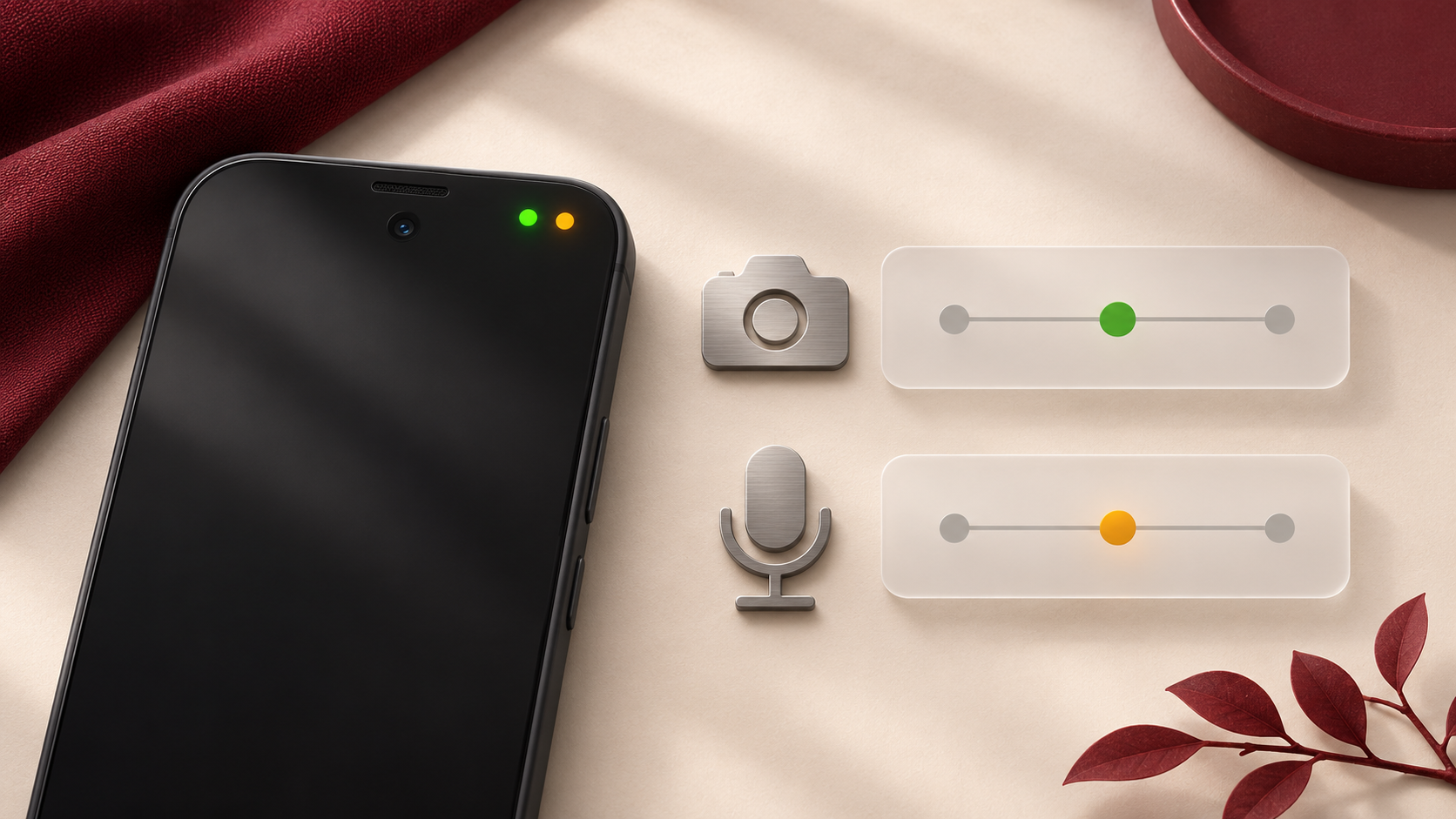
You open the camera preview for a video call and a small indicator appears near the top of the screen. It signals camera or microphone use. If it disappears before you can check, look for recent access in your phone's privacy history.
Start with the action you were taking. A video preview can use the camera while recording a voice message uses the microphone. The meaning of the indicator also depends on the phone, so read the guidance for your device.
Read the live indicator
On iPhone with iOS 14 or later, orange signals app use of the microphone alone. Green signals use of the camera, either by itself or with the microphone. Apple also describes an orange square when the accessibility setting Differentiate Without Color is on. Apple's iPhone indicator guide
Google's Android guide describes a green indicator when an app uses the camera or microphone. On supported devices, swipe down and tap the indicator to identify the app or service using the sensor. The guide notes that some steps require Android 12 or later and that swiping down may vary by device. Android camera and microphone guide
If you are trying to understand a recurring signal, watch what happens when you start a familiar feature. Note the action, the sensor identified by the phone, and the approximate time. Those details will help you find the relevant entry later.
Look up recent access on iPhone
Apple's App Privacy Report is available on iOS 15.2 or later. In Settings, look under Privacy & Security for App Privacy Report. Collection begins when you turn it on. Its Data & Sensor Access section can show the times and frequency of app access to the camera and microphone within the past seven days. Apple's App Privacy Report guide
If you have just enabled the report, give it time to gather activity from ordinary use. Apple says the report data is encrypted and stored on the device. Turning the report off clears that report data. App permissions are a separate setting to review when you want to change access. Apple's report settings and privacy details
Check Android's Privacy Dashboard
Google describes the Privacy Dashboard under Security and Privacy or Privacy in Settings. Some devices require another tap on Privacy. Select the camera or microphone permission to find apps that accessed it, and select an app if you want to update its permission. Google documents a 24-hour view on Android 12 and seven days on Android 13. Android Privacy Dashboard guide
Use your phone's available history to look for the event you noticed. A time and an app name help you decide which feature to examine. For example, a microphone entry near a voice message you recorded gives you a specific action to compare with the report.
Match the access to a feature you use
Consider whether you recognize the task that needed the sensor. If the timing surprises you, check the app's explanation of the feature and its privacy settings. Check the app, sensor, and time shown in the report. A sensor entry alone cannot establish whether a recording was saved or sent elsewhere. For those questions, review the app's own information and controls.
Choose one event and compare its time with a specific action. If you want to repeat a task to see how it appears, use an ordinary test, such as opening a camera preview with the lens pointed at a blank surface.
Change access when the purpose changes
If an app no longer needs the microphone or camera for the features you use, review that specific permission. After changing it, check that your intended feature still works. If a feature asks again later, read the prompt with the task in mind before deciding.
Google's Android guide also describes Quick Settings tiles for turning camera or microphone access off on supported devices. Check the relevant tile if you have blocked a sensor and a feature later needs it. Android Quick Settings guidance
On a device managed by your workplace or school, follow its process for reviewing app access. If a permission is unclear, bring the app name, sensor, and approximate time to the administrator. Those details give them a concrete event to investigate.