Practical privacy
Browser Sync Can Carry More Than Bookmarks
A practical guide to reviewing browser sync categories, connected devices, account security, and the difference between stopping sync and removing stored data.
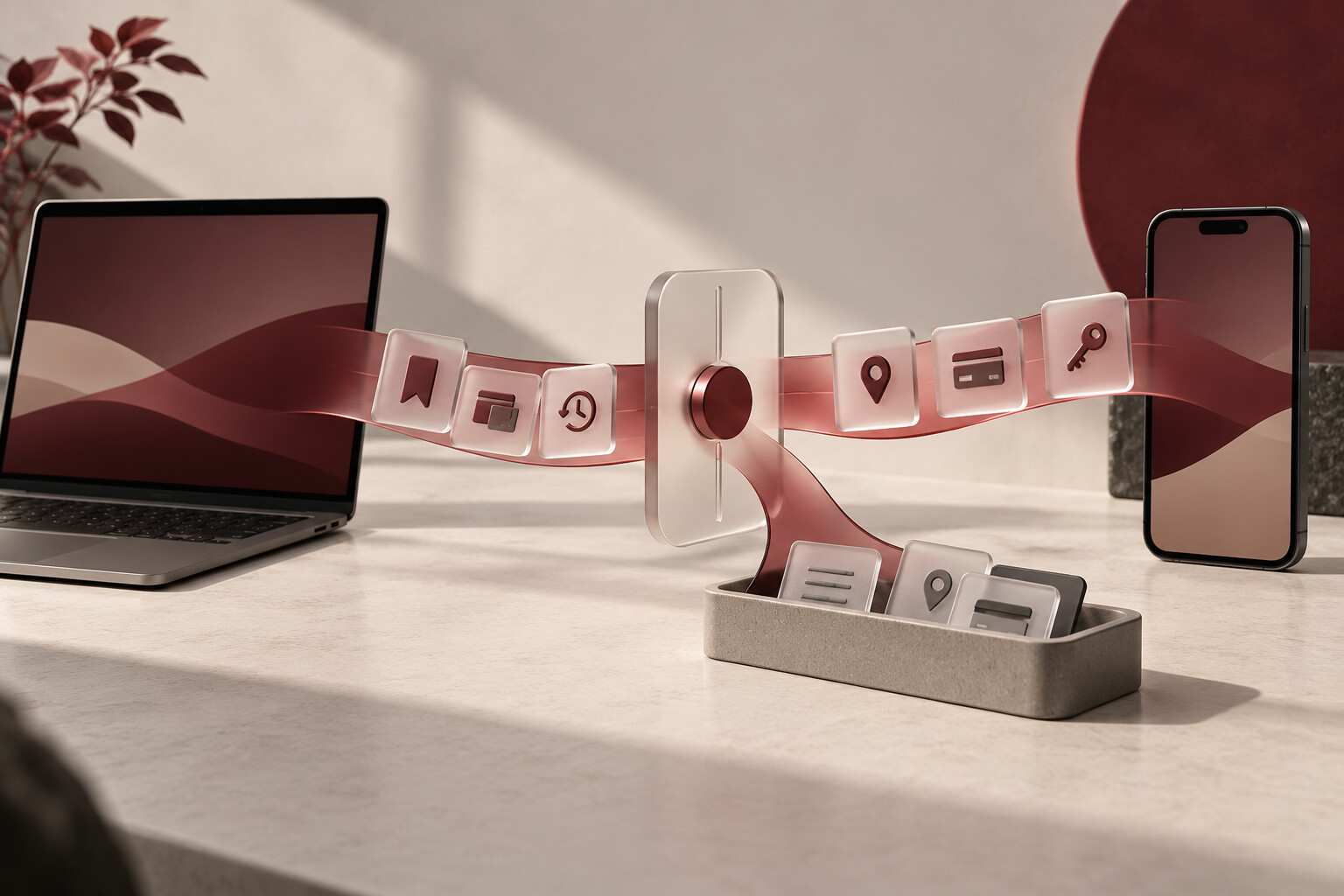
Browser sync is easy to describe as a way to keep bookmarks on every device. In practice, it can carry a much broader record of how a browser is used: open tabs, browsing history, saved passwords, addresses, payment details, extensions, preferences, and other profile information. That convenience can be valuable, but it also turns the browser account into a privacy control worth reviewing on its own.
The important question is not simply whether sync is on or off. It is which categories are included, which devices remain connected, how the account is protected, and what happens to information that has already been copied elsewhere.
Start with the categories, not the master switch
Different browsers organize sync differently. Google’s current Chrome sign-in guidance says that signing in can save bookmarks, passwords, and other Chrome data to a Google Account for use across signed-in devices. Tabs and Chrome history are separate options that can be enabled in Chrome settings. Google also provides a page for managing or deleting Chrome data already stored in the account.
Mozilla’s Firefox Sync guidance lists open tabs, browsing history, bookmarks, logins and passwords, addresses, payment methods, add-ons, and browser settings among the available categories. It explains that people can choose the information types they want to sync instead of treating the feature as one indivisible package.
Microsoft similarly says in its Edge sync guidance that favorites, passwords, addresses, browsing history, extensions, and other data types can be controlled with individual toggles. The exact menu names and available categories can vary by device, browser version, account type, and organizational policy, so use the descriptions shown in the browser you actually use.
History and open tabs can reveal context
A bookmark is usually an intentional record. History and open tabs can be more revealing because they reflect ongoing research, health questions, travel planning, financial interests, work projects, or personal concerns. When those categories sync, a session that began on one device may become visible on another device signed into the same browser account.
That can be useful on a personal laptop and phone. It deserves more care on a shared computer, an old device, a workplace profile, or a tablet used by several household members. Review the browser’s device or session list as well as its sync categories. If a device is lost, sold, returned to an employer, or no longer used, remove or sign it out through the account’s security controls and clean the local browser profile when it is safe to do so.
Turning off sync is not always deletion
Stopping future synchronization, signing out, deleting cloud-held sync data, and removing local browser data are different actions. Mozilla, for example, says that signing out stops syncing from that Firefox installation but does not by itself delete the account’s synced data from its servers. It also notes that data previously copied to local devices can remain there even when server-side sync data is deleted.
The same practical distinction applies across browsers: read each confirmation screen carefully. If the goal is merely to stop one category from traveling, turn off that category. If the goal is to retire a device, sign it out and decide whether to remove its local profile. If the goal is to clear information held with the browser account, use the account’s separate data-management controls. One action should not be assumed to complete all three jobs.
Protect the account that connects the devices
Because sync can include credentials and personal details, the browser account deserves a unique password and multifactor authentication when available. Review recovery email addresses, phone numbers, passkeys, and recovery codes so an old or inaccessible method does not become the weak link. Also review unexpected sign-in alerts and connected devices rather than approving them from habit.
For managed work or school profiles, do not change required settings or remove a device without understanding the organization’s policy and your authority. A managed browser may limit which categories can be changed, and work data should remain separated from a personal profile whenever practical.
Make the scope match the purpose
A short review can begin with four questions: Which data categories are syncing? Which devices can receive them? Is the account strongly protected? What information remains locally or in the account if sync is turned off? Keep the categories that provide a clear benefit and disable those that create more exposure than convenience.
Browser sync is not inherently a privacy problem. It is a data-sharing relationship among devices. Treating it that way makes the controls easier to understand: choose what should travel, know where it can appear, and close the connection when a device or profile no longer belongs in the loop.
This article provides general educational information, not individualized technical or legal advice. Browser menus, sync categories, deletion behavior, and organizational controls vary by service, device, account type, and software version. Official Google, Mozilla, and Microsoft guidance was reviewed on October 4, 2026.