Privacy education · October 20, 2026
Review Where Your Email Is Automatically Forwarded
A practical guide to forwarding settings, selective filters and rules, destination access, and reviewing delivery arrangements that outlive their purpose.
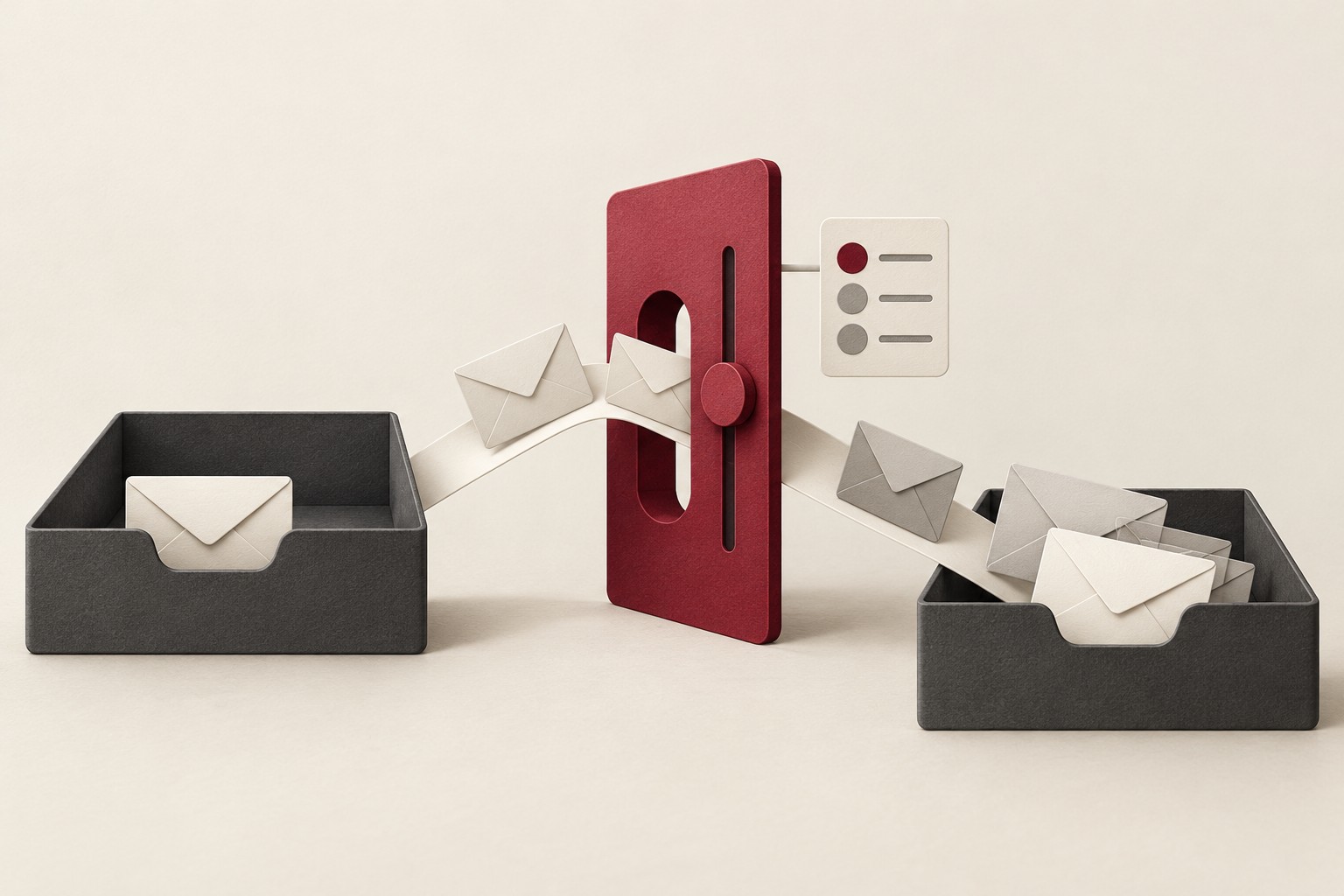
Automatic forwarding can solve a practical problem: bringing messages into one place or supporting a temporary account transition. Once it is working, it can also be easy to forget. A useful privacy review asks whether that continuing delivery still serves the purpose that justified it.
Think of forwarding as a standing instruction to send mail somewhere else. The original inbox may still look familiar while another mailbox receives a copy. Reviewing that instruction is about understanding where information goes, who can reach the destination, and when the arrangement should end.
Start with the purpose and destination
Identify the account that sends the messages onward and the mailbox that receives them. Ask why the connection exists, whether the destination is still under the intended person’s control, and whether the same categories of messages still need to travel there.
A temporary arrangement deserves another look after an account transition or a change in responsibilities. If the account belongs to an employer or school, follow its support and information-handling rules before changing delivery. The person who uses a mailbox may not be the person responsible for managing every setting.
Check broad forwarding and selective filters
Google’s Gmail forwarding guidance says account-wide forwarding sends new messages except spam. It separately describes filters for messages matching selected criteria. Google instructs users to turn off broad automatic forwarding before relying on a filter to choose specific messages.
A selective filter should therefore not be assumed to narrow a broad forwarding setting that remains enabled. Review the overall setting and any forwarding filters as separate parts of the same delivery arrangement.
For Gmail on a computer, Google directs users through Settings and See all settings to the Forwarding and POP/IMAP or Forwarding tab. To stop the broad feature, choose Disable forwarding and save the change. Inspect the filters that can forward selected messages too.
Review the rules for your actual application
Microsoft’s Outlook forwarding instructions describe a forwarding control under Settings, Mail, and Forwarding for new Outlook, with version-specific directions for other experiences. The page also notes that automatic forwarding can be configured through rules.
Microsoft’s separate rules guidance describes conditions, forwarding or redirecting actions, and exceptions. Read the rule’s complete scope instead of judging it by its name. A label such as “temporary” is a description someone chose; it is not evidence that the rule has an expiry.
Use documentation that matches your mail application, account type, and version. Having several accounts displayed in one application is also a different question from a server forwarding messages between mailboxes. Identify the actual delivery mechanism before deciding which control needs attention.
Consider the receiving mailbox
The destination deserves its own review. Is it a personal mailbox, a shared team inbox, or an account you no longer use? Who can sign in there, and is its access still appropriate for the information being delivered?
Consider the messages that could arrive tomorrow, not just the examples that made the original setup convenient. If the task only requires a limited category, review whether an appropriately scoped arrangement is available and permitted. Avoid sending a broad stream of correspondence simply because it is easier than defining the need.
Save the change and check the result
When a forwarding arrangement ends, follow the provider’s documented steps and confirm that the change was saved. Return to the relevant settings and review any filters or rules that could continue forwarding independently.
If appropriate, use a harmless test message to check what happens. Treat that as a limited observation of the particular conditions tested, rather than proof that every possible rule and exception has been examined. A message that does not arrive can have explanations beyond the setting you changed.
Stopping future delivery should not be treated as retrieving copies already delivered to another mailbox. If those copies also need attention, handle that as a separate retention and access decision with the appropriate account owner.
Give the arrangement a review date
Keep a private note of the purpose, destination, scope, and next review point for forwarding you intentionally retain. Revisit it when responsibilities or account use change.
The routine is manageable: understand the instruction, check broad settings and selective rules, review destination access, and verify the change. That keeps a convenient feature connected to a current privacy decision.
General privacy education. Forwarding controls and availability vary by service, account type, application, and organizational policy. Follow the current instructions for your account. Sources reviewed October 20, 2026.